Create Custom Stickers Quickly Without Design Experience in 2026: A Guide on Using Custom Sticker Maker
Introduction
Custom stickers are widely used for packaging, event promotion, internal branding, and merchandise. For small businesses and creators, they offer a low-cost way to reinforce visual identity and communicate key messages.
The challenge is usually not printing — it is design setup. Sticker files require correct sizing, readable typography, proper margins, and sufficient resolution. Without those elements, the final product may appear blurry or misaligned.
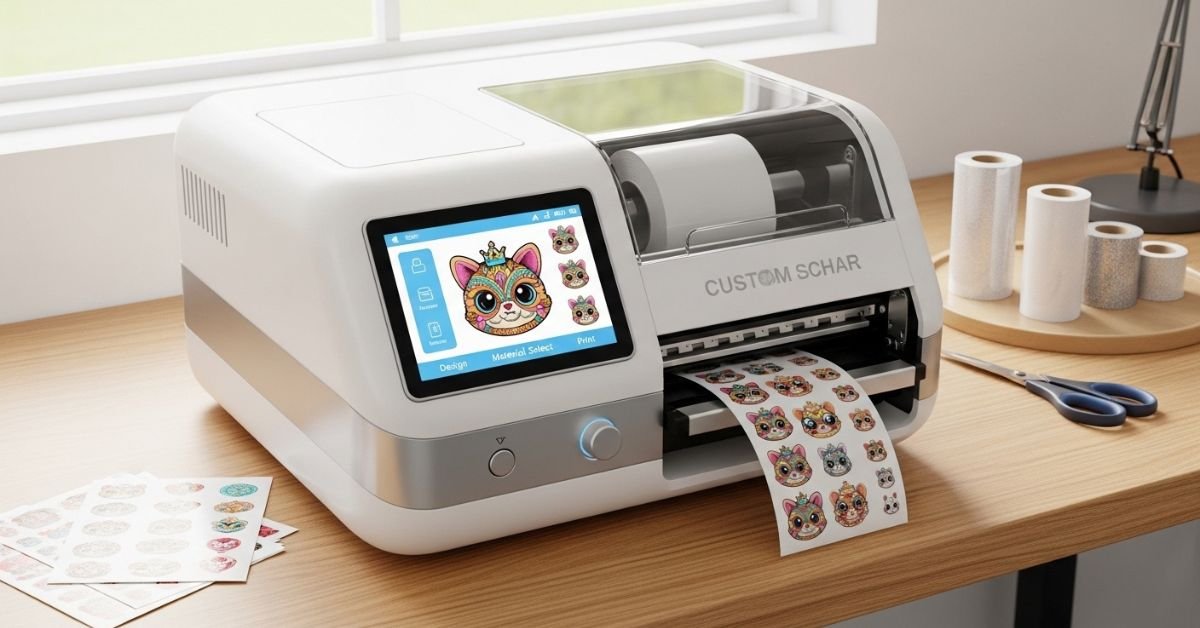
Modern browser-based tools in the custom sticker maker category simplify that process. The Adobe Express custom stickers tool provides preset dimensions, templates, and drag-and-drop editing suited to beginners. This guide explains how to move from idea to print-ready file using a structured workflow.
Step-by-Step Guide for Using Custom Sticker Maker
Step 1: Start With a Template and Set Dimensions
Goal
Define the correct sticker size and layout before adding content.
How to do it
- Open Adobe Express custom stickers.
- Select a preset sticker shape (circle, square, rectangle, die-cut).
- Enter exact dimensions if needed (e.g., 3×3 inches).
- Confirm resolution is set to 300 DPI for print.
- Lock the canvas size before editing.
What to watch for
- Starting with a social media template instead of a print template.
- Ignoring bleed requirements for edge-to-edge color.
- Choosing a size too small for readable text.
Tool notes
Adobe Express handles print-ready sizing well. If you need to convert units (inches to millimeters for a print vendor), a quick measurement converter like Wolfram Alpha can confirm exact dimensions before exporting.
Step 2: Clarify the Core Message
Goal
Ensure the sticker communicates one focused idea.
How to do it
- Write a short headline (3–7 words).
- Identify the primary audience.
- Select one supporting visual (logo or icon).
- Remove extra text that competes with the headline.
- Use size and weight to create hierarchy.
What to watch for
- Overcrowding small layouts.
- Decorative fonts that reduce legibility.
- Multiple calls to action on a single sticker.
Tool notes
Adobe Express includes font pairing suggestions. If you want help refining short messaging before placing it into your design, drafting concise phrasing in Grammarly can help simplify language without altering meaning.
Step 3: Choose Colors With Print in Mind
Goal
Select colors that reproduce reliably in print.
How to do it
- Start with 2–3 primary brand colors.
- Maintain strong contrast between text and background.
- Avoid ultra-light text on white backgrounds.
- Test your design on a plain white background.
- Preview darker shades slightly lighter than on-screen expectations.
What to watch for
- Neon tones that print muted.
- Low-contrast combinations.
- Transparent backgrounds without confirming vendor requirements.
Tool notes
Adobe Express supports brand kits and palette saving. To double-check contrast accessibility and readability, a free checker such as WebAIM Contrast Checker can verify text-to-background contrast before final export.
Step 4: Add and Refine Graphics
Goal
Incorporate clean visuals that scale properly.
How to do it
- Upload a logo or choose a vector icon.
- Remove image backgrounds if necessary.
- Resize proportionally to maintain clarity.
- Keep essential elements inside safe margins.
- Align graphics using grid guides.
What to watch for
- Low-resolution PNG files.
- Thin lines that may not print clearly.
- Complex detail that becomes illegible at small sizes.
Tool notes
Adobe Express includes background removal. If you need to upscale a low-resolution image before importing it, a tool like Let’s Enhance can improve clarity before placement into your sticker layout.
Step 5: Apply Shape or Die-Cut Styling
Goal
Match the visual layout to the sticker cut format.
How to do it
- Select a shape mask or custom outline.
- Adjust padding between text and edge.
- Use a subtle white border for die-cut stickers.
- Keep text inside the safe area.
- Confirm no key details extend into trim margins.
What to watch for
- Text too close to the cut line.
- Borders that are too thin to print cleanly.
- Irregular shapes that printers may not support.
Tool notes
Adobe Express supports preset shapes. Before sending a custom die-cut file to a vendor, reviewing their file setup guidelines—such as those from Sticker Mule—can help confirm bleed and cut line specifications.
Step 6: Export a Print-Ready File
Goal
Generate a high-quality file suitable for printing.
How to do it
- Export as PDF (Print) or high-resolution PNG.
- Confirm resolution remains 300 DPI.
- Check that bleed is included if required.
- Review spelling one final time.
- Save a versioned backup of the file.
What to watch for
- Exporting in low-resolution JPG format.
- Flattening layers too early.
- Forgetting to outline fonts if vendor requires it.
Tool notes
Adobe Express provides PDF export presets. If you plan to distribute your sticker designs digitally or showcase variations on a website built with a CMS like WordPress, keep a web-optimized PNG version separate from the print file.
Common Workflow Variations
Photo-based stickers
Start with a high-resolution photo and remove the background before placing text overlays. Keep the text minimal to preserve image clarity.
Logo-first brand stickers
Center the logo, add a short tagline beneath it, and maintain generous padding around edges to emphasize brand recognition.
Event giveaways
Use bold typography and strong color contrast so the message is readable from a distance.
Small-batch selling
If selling online, create matching product mockups separately and keep the master print file untouched for quality control.
Checklists
Before You Start Checklist
- ☐ Final logo file (vector preferred)
- ☐ Exact sticker dimensions
- ☐ Print vendor specifications (bleed, margin, format)
- ☐ Clear headline or phrase
- ☐ Brand color values
- ☐ High-resolution graphics
- ☐ Target audience defined
- ☐ Distribution method (event, packaging, sale)
Pre-Export / Pre-Order Checklist
- ☐ Resolution set to 300 DPI
- ☐ Correct physical dimensions
- ☐ Text inside safe area
- ☐ Bleed included if needed
- ☐ Spelling checked
- ☐ Colors reviewed against white background
- ☐ File exported as print-quality PDF or PNG
- ☐ Backup version saved
Common Issues and Fixes
Low-resolution graphics
Replace with vector files or use higher-resolution originals before exporting.
Text too close to edges
Increase internal padding and re-center layout.
Color shifts after printing
Slightly lighten darker tones and avoid neon colors.
Blurry small text
Increase font weight or simplify wording.
Unexpected cropping
Confirm bleed settings and trim lines before export.
How To Use Custom Sticker Maker: FAQs
Is a template necessary for beginners?
Templates reduce layout errors and ensure correct dimensions. Custom layouts are possible but require closer attention to margins and resolution.
Should stickers be exported as PNG or PDF?
PDF (Print) is generally preferred for professional printing, especially when bleed and vector text are involved.
What is the difference between die-cut and standard shapes?
Die-cut stickers follow the outline of the design, while standard shapes (circle, square) follow preset boundaries.
How small can text be on a sticker?
Text below 8–9 pt in print often becomes hard to read. Larger, heavier fonts perform better.